Training Material
On this page
How to use the catalogue
The Niagara Open Data catalogue is built on the CKAN data management system. The catalogue makes it easy to quickly find, review and access data. To help with your use of the site brief overviews on many of the features have been included on this page.
Search
You can search for a dataset with a word that might describe a dataset or topic. Use words like “roads” or “councillor expenses” to discover the datasets about or linked to the term entered. Searchs return datasets based on the inclusion of entered term in the dataset's title, description or metadata.
You can search for a dataset from 3 spots on the catalogue:
- the homepage,
- the dataset search page, or
- on an organization's profile.
On the dataset search page, you can also filter your search results. You can select filters on the left-hand side of the page to limit your search for datasets with your favourite file format, datasets that are updated weekly, datasets released by a particular organization, or datasets that are released under a specific licence. Go to the dataset search page to see the filters that are available to make your search easier.
Topics
You can also do a quick search by selecting one of the Topic categories on the homepage. These categories can help you see the types of data we have on key topic areas.
Topic categories include:
-
Dataset about arts, recreation and sports. Examples of what may be found under this category are datasets that include venue and event locations, recreational programming and scheduling, and related infrastructure such as parks, galleries, arenas, trails, etc.
-
This category can include data concerning economic performance, business development and operations. Examples of datasets under the Economic and Business are development lands (Brown Fields), business directories and employment statistics, to name a few.
-
Datasets under the education and training category datasets may contain information about educational opportunities and performance. These datasets may include content on educational statistics, location of educational institutions, program listing, etc.
-
Environment and Natural Resources
Included within the Environment and Natural Resources category are datasets about Niagara's natural features, land use and weather. Examples of what can be founded in this category includes water quality assessment results, land classification and zoning, weather tracking, natural species catalogues, etc.
-
Covering all aspects of the operations of an organization, under this category are datasets covering councillor/board memberships, budgets, by-laws and performance reporting.
-
Datasets pertaining to the physical, social and mental health of the community. These datasets may include health indicators, support services directories, facility locations, and program listings, for example.
-
Housing, Communities and Social Support
Under this category is data related to the community wellness and social supports. Examples of the data include social program contacts, shelter locations, and community wellness statistics, to name only a few.
-
Infrastructure and Transportation
Include under this category are datasets on physical infrastructure and municipal services. Within the datasets you may find data on roads and traffic, waste collection, water and wastewater and transit.
-
Under Public Safety category are datasets on crime, emergency services and public safety programs. These datasets can include but are not limited to, crime statistics, emergency care centers details, and public safety performance measures.
When you find the desired dataset, click on the title link to go to the dataset record.
Dataset records
Each dataset record provides valuable information about the data contained within it.
An open dataset may contain several data files. These files might represent different periods of time, different sub-sets of the dataset, different regions, other breakdowns or formats. You can select a file and either download it or preview it. Make sure to read the licence agreement to ensure you have permission to use it the way you want.
Read more about previewing data
Visualizing data
The catalogue has tools that enable all users to visualize the data in the catalogue without leaving the catalogue or requiring any other software. Have a look at our walk-through on how to use data visualizations on the catalogue.
Keeping updated
Get automatic notifications when datasets are updated. You can choose to get notifications for individual datasets, an organization’s datasets or the full catalogue.
You don’t have to provide and personal information – just subscribe to our feeds using any feed reader you like using the corresponding notification web addresses. Copy those addresses and paste them into your reader.
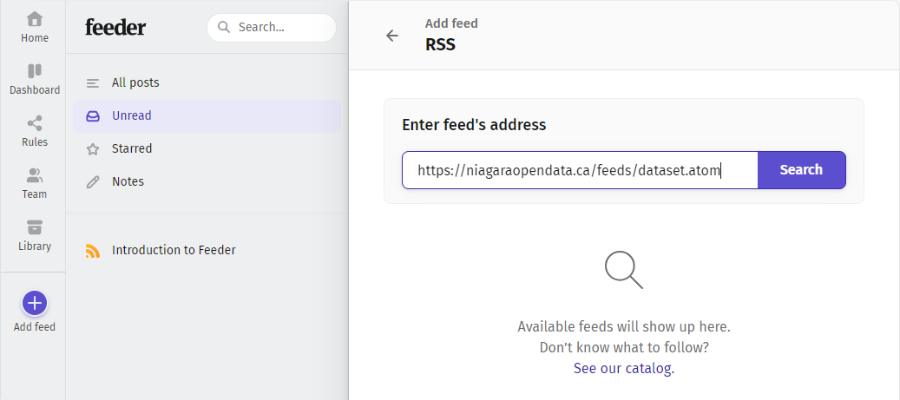
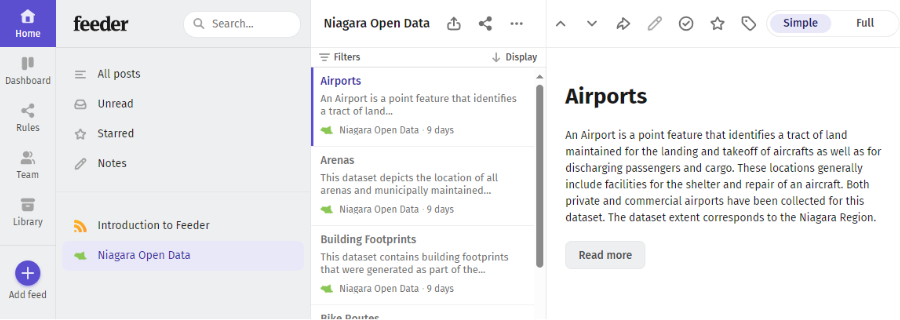
Your feed reader will let you know when the catalogue has been updated. For more information on how you can configure specific feeds for organization or datasets see our help guide on receiving notifications when the catalogue is updated.
Contact and Data Requests
We are always interested in hearing from our users about their experience using NiagaraOpenData.ca or when they are looking for data not found on the catalogue. To make the submissions of those requests easier and trackable on the site we have created contact and data request submission systems. When you submit a request you can direct that request to one of our organizations, as well as track and comment on your submission through the site.
To track a contact request or post and track a data request you must be a logged in user. Login and registration links can be found in the tool bar at the top of each page.
Posting a request:
-
Open the Contact or Data Request page.
Links to either submission form are found on the site's navigation bar at the top of each page.
-
The request page loads displaying any previously posted requests. Located above the request search bar is a button for either
 or
or 
Click on the Contact Us or Add Data Request button
-
Add a unique title and a description for your request. From the Organization dropdown select your targeted organization. If your request is not trageted at any single organization, select "NiagaraOpenData" from the list of organizations.
-
Complete the security CAPTCHA, and click on the "Send Request" or "Post Data Request" button
Review a request:
-
Logged in, return to the Contact or Data Request page.
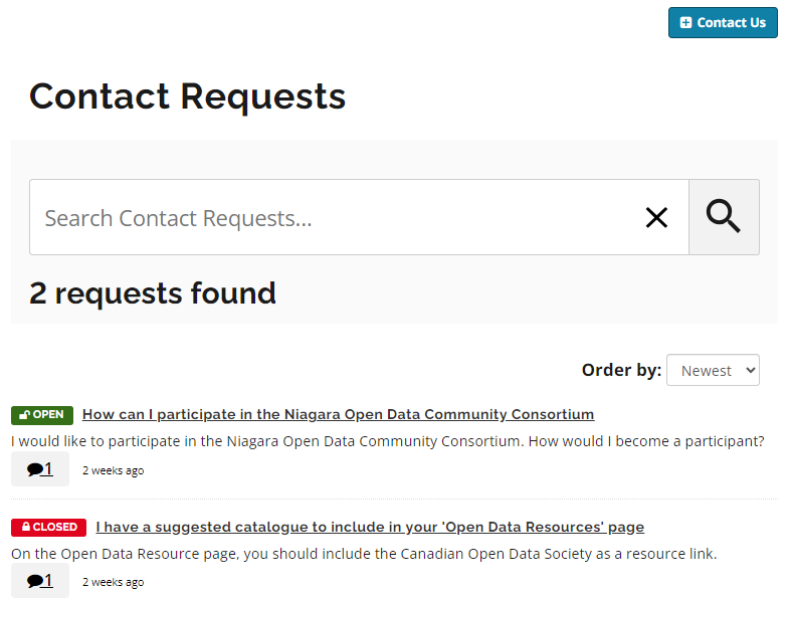
Below the search bar, any previously posted requests will be listed. In the case you are accessing the Data Requests page you will see all requests posted by our community members.
-
Locate the request you are looking for, either by moving through the list of request or by using the search bar located at the top of the list.
-
Click on the title of the request to open request details.
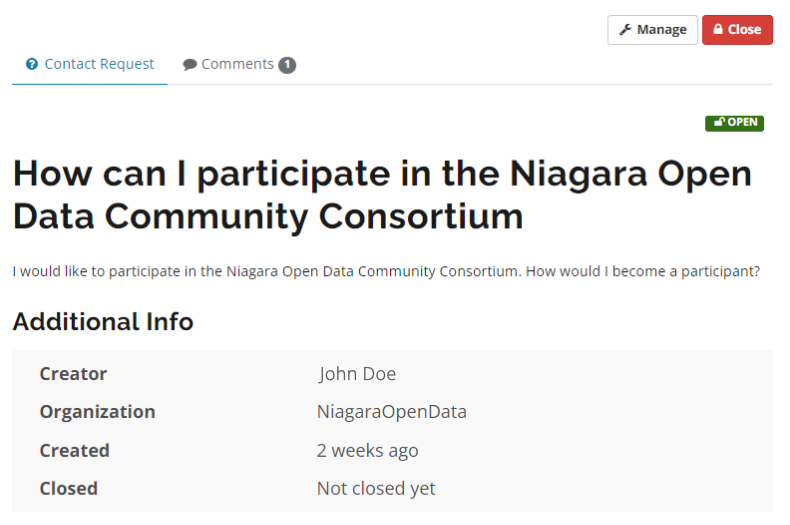
Search for a request:
-
Logged in, return to the Contact or Data Request page.
Below the page title a search bar is found. Enter a word that was included in either the title or description of the desired request.
-
Click on the search magnifier button
The listing of requests below the search bar will filter to display only submissions where the entered word(s) is included in either the title or description
Note: If you wish to clear a search, click on the "X" button found to the right of the search button, then click on the search button
Comment on a request:
The value of tracking a request is that comments can be applied against it but the requested organization, the submitter or in the case of a data request any logged in user.
-
Logged in, return to the Contact or Data Request page. Locate the request of interest, see the sections above on "Search for a request" and "Review a request".
-
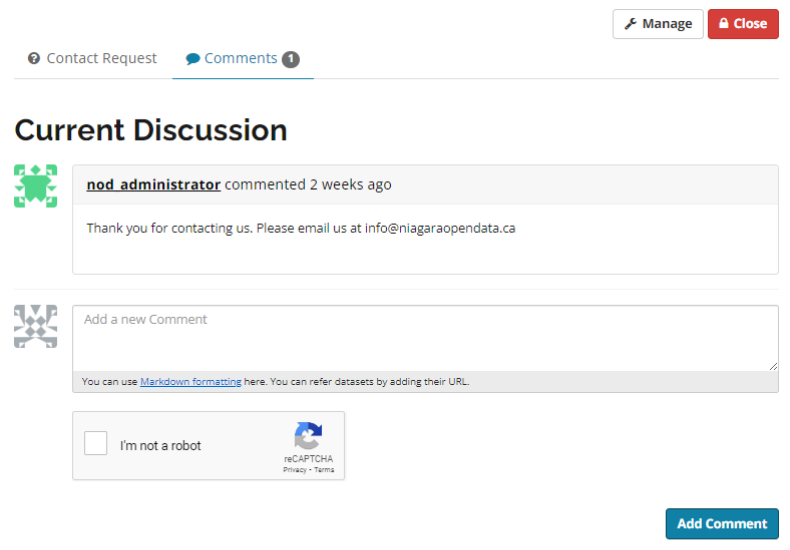
Once on the desired request, found above the request title is a tab button labelled "Comments". Click on this tab button.
-
Any previously posted comments will be listed under the "Current Discussion" title. At the bottom of the list will be a "Add a new Comment" field. Type your comment in this form field.
-
Complete the CAPTCHA and click on the "Add Comment" button.
Your comment will be added to the listing and the comment counter will increase by one.
Note: If you are the original poster of a request, you will receive notifications emails to the email account associated with your user account for any comments or changes made to your requests.
NiagaraOpenData.ca administrators reserve the right to change, close and/or remove any request that violates the catalogues terms of use. Violations may result in the termination of a user's account.